Disable the Account and Validate Compromise#
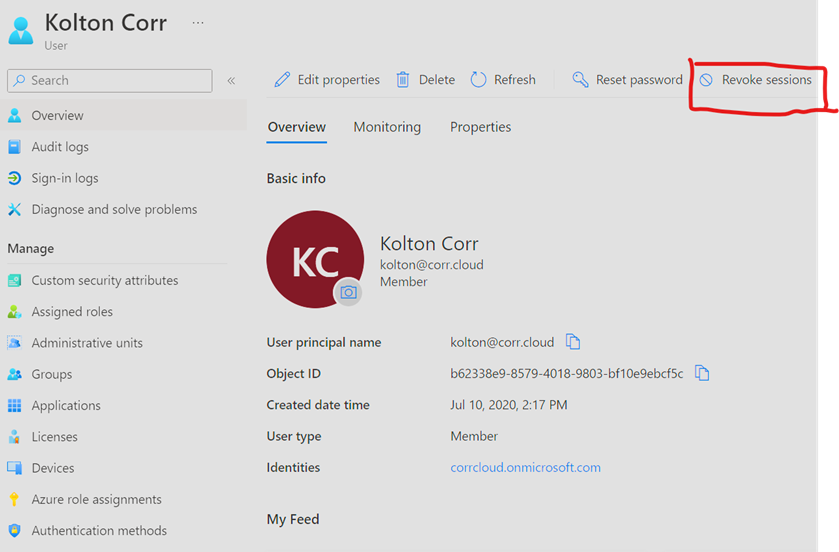
- Disable the account in question, change password and revoke sessions.
- Verify account compromise.
- Check sign-in logs to validate odd behavior.
- Validate that user account has not registered an application.
- Usually there may be tools that were registered by the attacker that are related to data recovery.
- Check Audit log for compromised account.
- Perform an email message trace for sent emails.
- The compromised accounts mailbox may also have rules created to hide the attacker.
Disable Account in Question#
- Navigate to https://entra.microsoft.com/
- Expand Users > All Users and search for the account in question.
- Disable Account:
- Revoke Sessions:
Verify Account Compromise#
- Navigate to https://entra.microsoft.com/
- Expand Users > All Users and search for the account in question.
- Open that account and open Sign-in logs
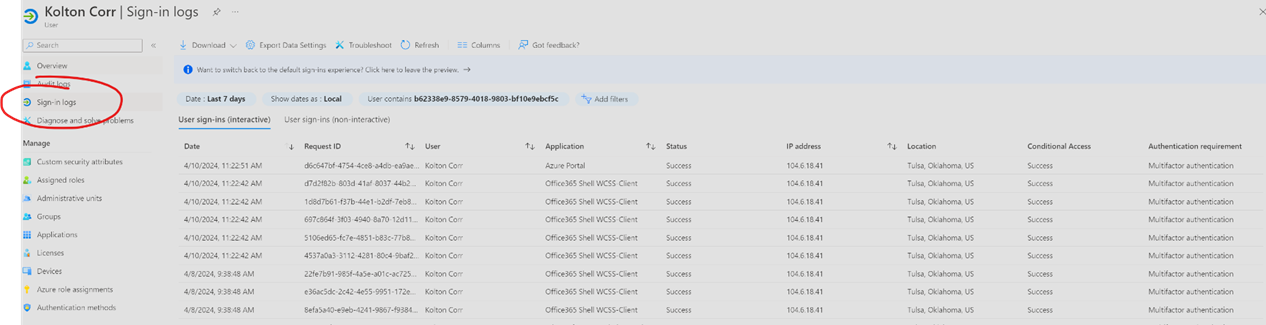
- Set Date to as long as possible.
- Depending on licensing they may only have 7 days of logging. You can also download the log once it is loaded.
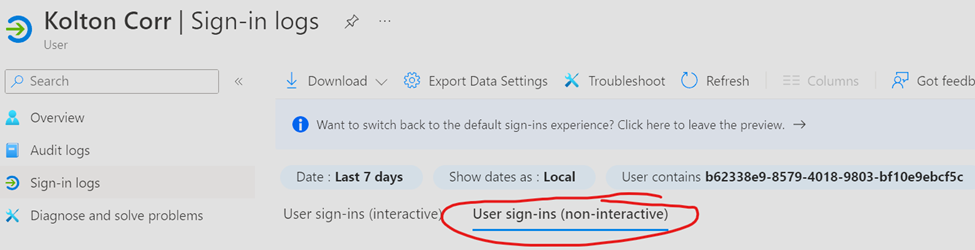
- Be sure to also pull the non-interactive sign-ins as well and download for reporting.
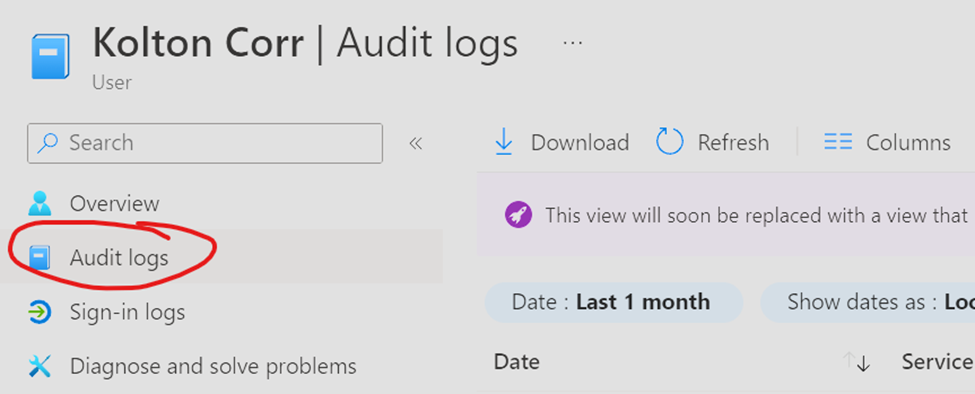
- Navigate to Audit logs and view/download audit logs for any changes that may have been performed.
Verify No Applications Have Been Registered#
- Within the panel of the suspect account, click on Applications and validate there are no suspicious applications that were added within the timeframe that the account was compromised.
- Keep in mind that legitimate applications are used for malicious purposes (such as data recovery tools).
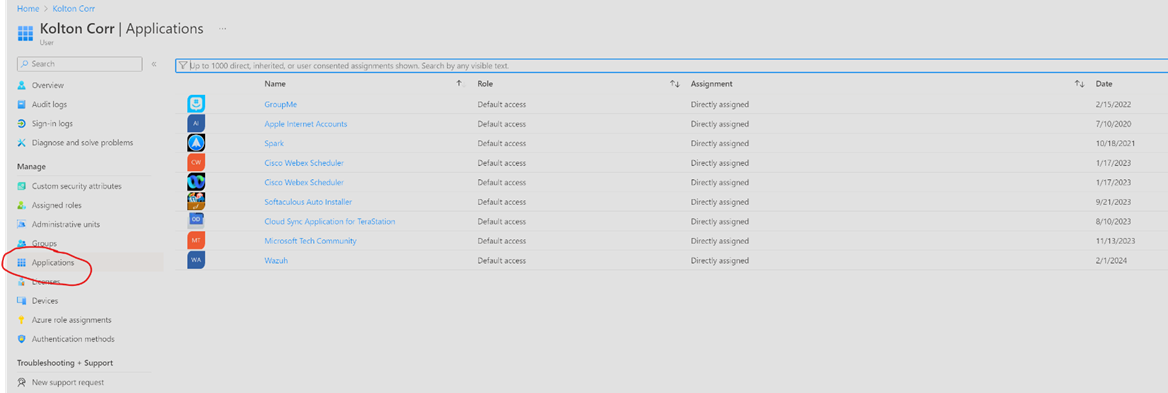
- Once documented, you may continue with the following:
- Remove all users assigned to the application
- Revoke all permissions granted to the application
- Revoke refresh tokens for all users
Cleaning up Malicious Application#
Within the permissions page of the application you can select Review Permissions
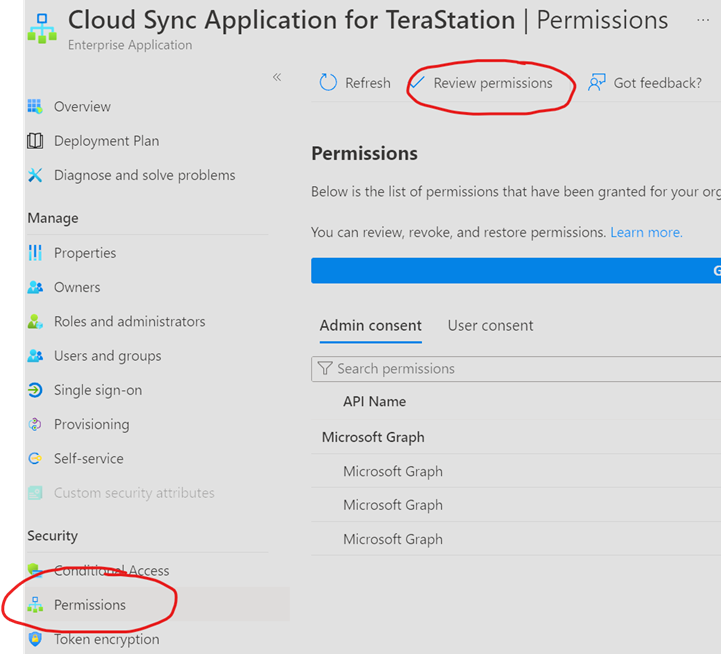
It will pop out a pane and you can select the following: “This application is malicious and I’m compromised”.
This will give you 3 PowerShell scripts to run to perform the 3 tasks we mentioned above.
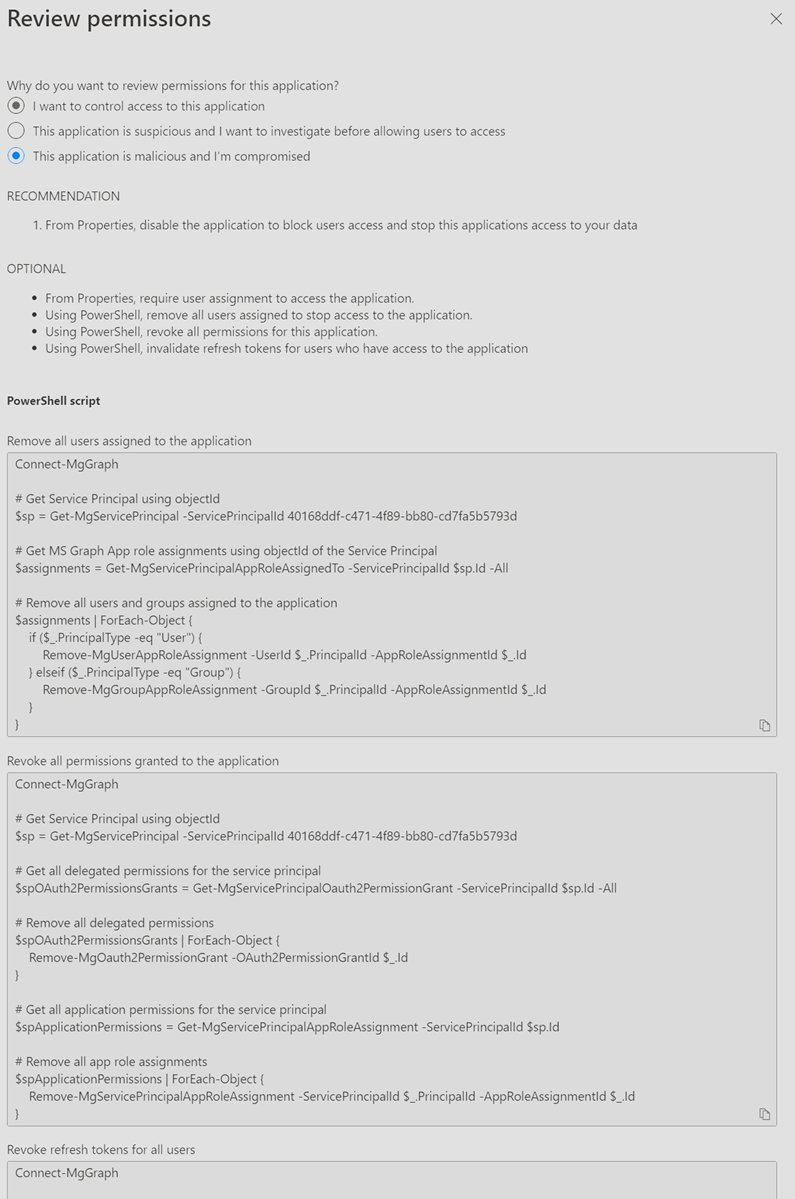
Once documented and the customer is ready to, you may remove the application from the Enterprise Applications screen. You may want to leave it there for the customer to reference the logs at a later date if they involve more investigation techniques.
Diagnose Email Compromise of Suspect Account#
- If the customer has the licensing, they can utilize tools in the https://security.microsoft.com/ to review suspicious emails, as well as mass deleting emails from mailboxes.
Remediate Email Using Microsoft Defender XDR#
Remediate malicious email that was delivered in Office 365 | Microsoft Learn
Remediate Email Using PowerShell#
- If the customer does not have Microsoft Defender, you can use the following instructions to remediate the malicious email for mailboxes within the tenant.
Preventative Actions#
- Implement MFA on all user accounts.
- Setup Conditional Access Policies (Entra P1+ License Required)
- Require MFA for all users
- Block access from other countries
- Block Unapproved Device Types
- Disable Persistent Browser Session
- Require App Protection Policy (If using Intune)
- Block legacy authentication (Don’t enable if customer is using SMTP Authentication)
- Require MFA to Join to Entra (If using Intune)
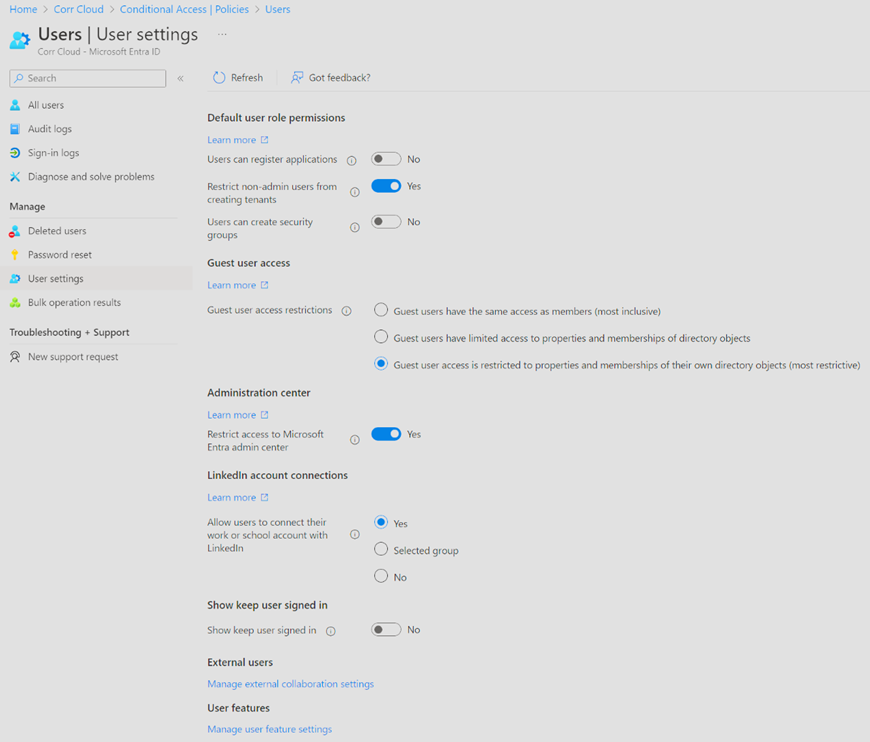
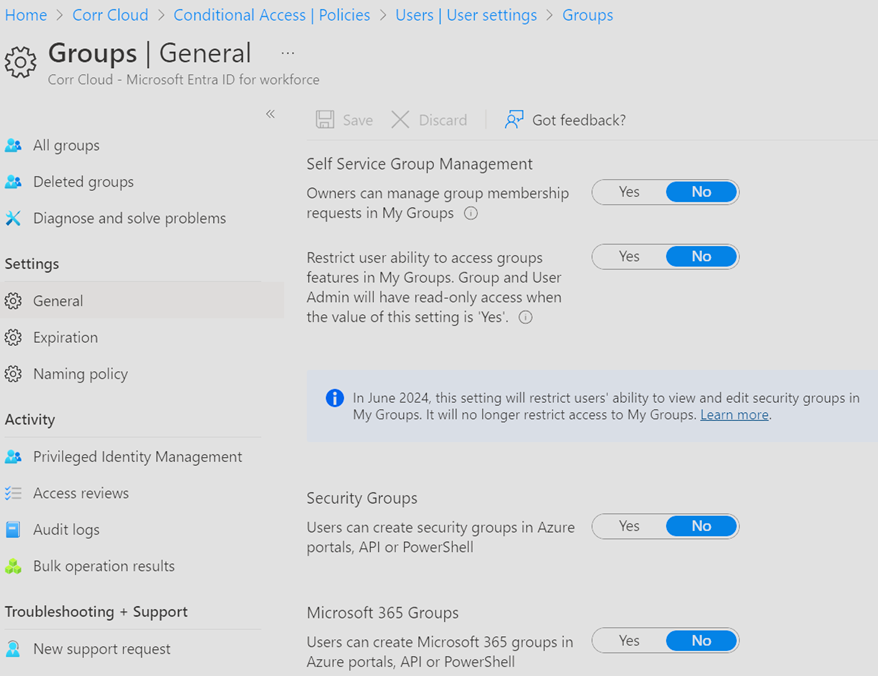
- Harden Tenant Settings
Harden User Settings#
Harden Group Settings#
Require Admin Consent for registering applications.#
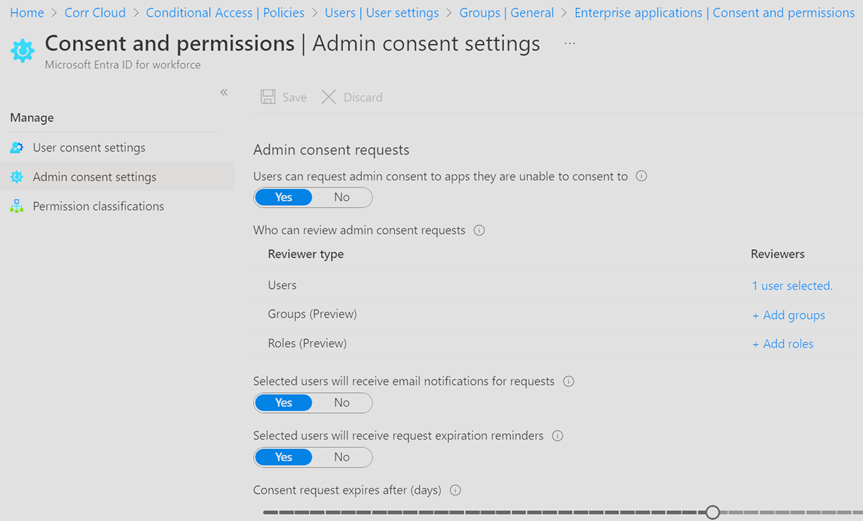
This can be set up so a group of admins will receive an email when a user attempts to register an application to the tenant.
- Navigate to Entra > Applications > Enterprise Applications > Consent and Permissions
- Most Restrictive: Change to force administrator approval for all applications
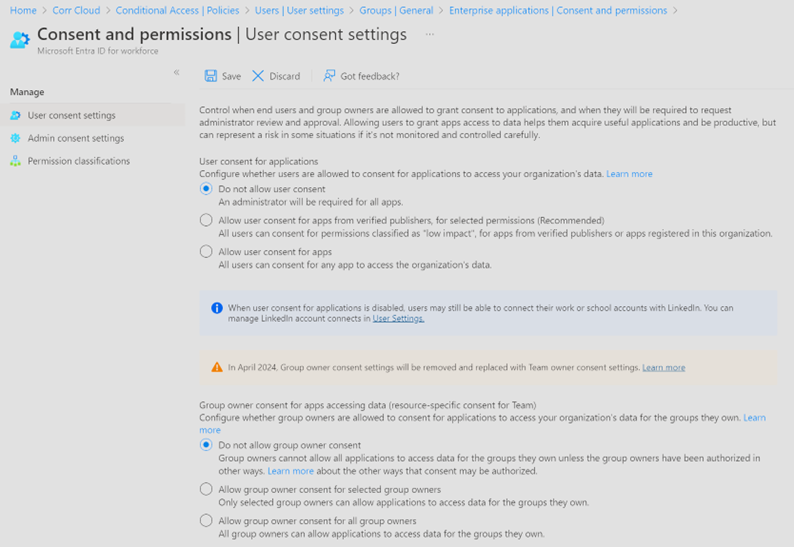
- Set up users who will be able to approve and deny consent requests.