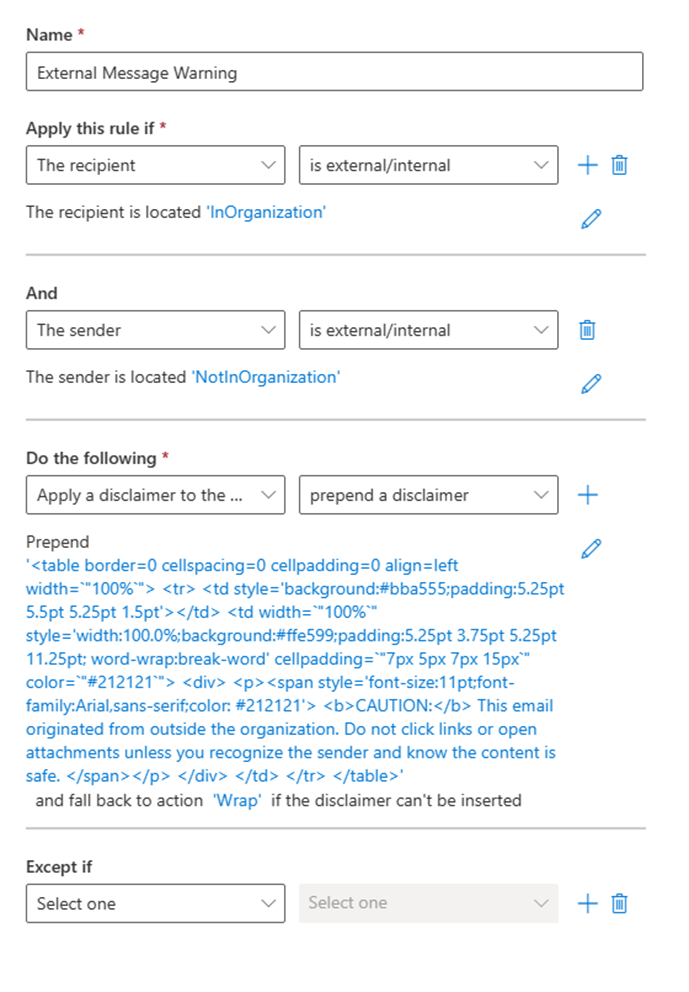
Copy this text into the “Specify Disclaimer Text”. You may change the verbiage of the caution message if necessary.
<tableborder=0cellspacing=0cellpadding=0align=leftwidth=`"100%`"><tr><tdstyle='background:#bba555;padding:5.25pt 5.5pt 5.25pt 1.5pt'></td><tdwidth=`"100%`"style='width:100.0%;background:#ffe599;padding:5.25pt
3.75pt 5.25pt 11.25pt; word-wrap:break-word'cellpadding=`"7px5px7px15px`"color=`"#212121`"><div><p><spanstyle='font-size:11pt;font-family:Arial,sans-serif;color:
#212121'><b>CAUTION:</b> This email originated from outside the organization.
Do not click links or open attachments unless you recognize the sender
and know the content is safe.
</span></p></div></td></tr></table>
Enforce the rule under settings, then enable the rule.
Test by sending an email from external to internal. It should look like this.